Software

P1LOT Link

One window for setting up the board, driving a dashboard on the bench and updating firmware. No installer, no account and no driver. It finds the board on the USB cable already connected.

What it is for

Configuration, and then the board runs on its own

The app is needed twice. Once to describe the rig, and again if something needs checking. Every setting is stored on the board rather than in the app, so the rig works with the app closed, uninstalled, or on a different computer.

Six pages, shown below. Five cover ordinary use. The sixth is the board’s own service shell, for diagnosis without a terminal emulator.

My setup
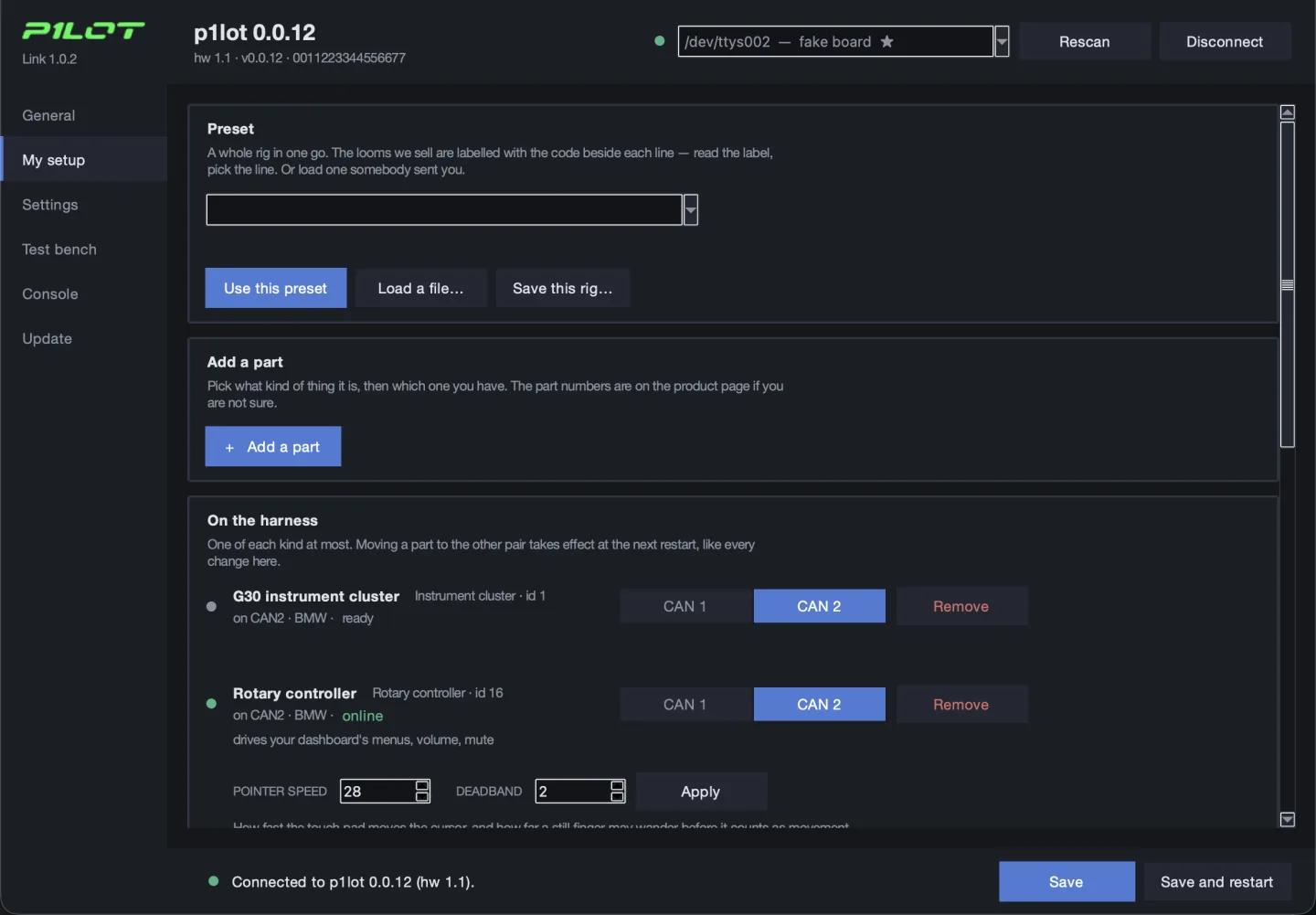
Everything the rig is built from, and what each part does.

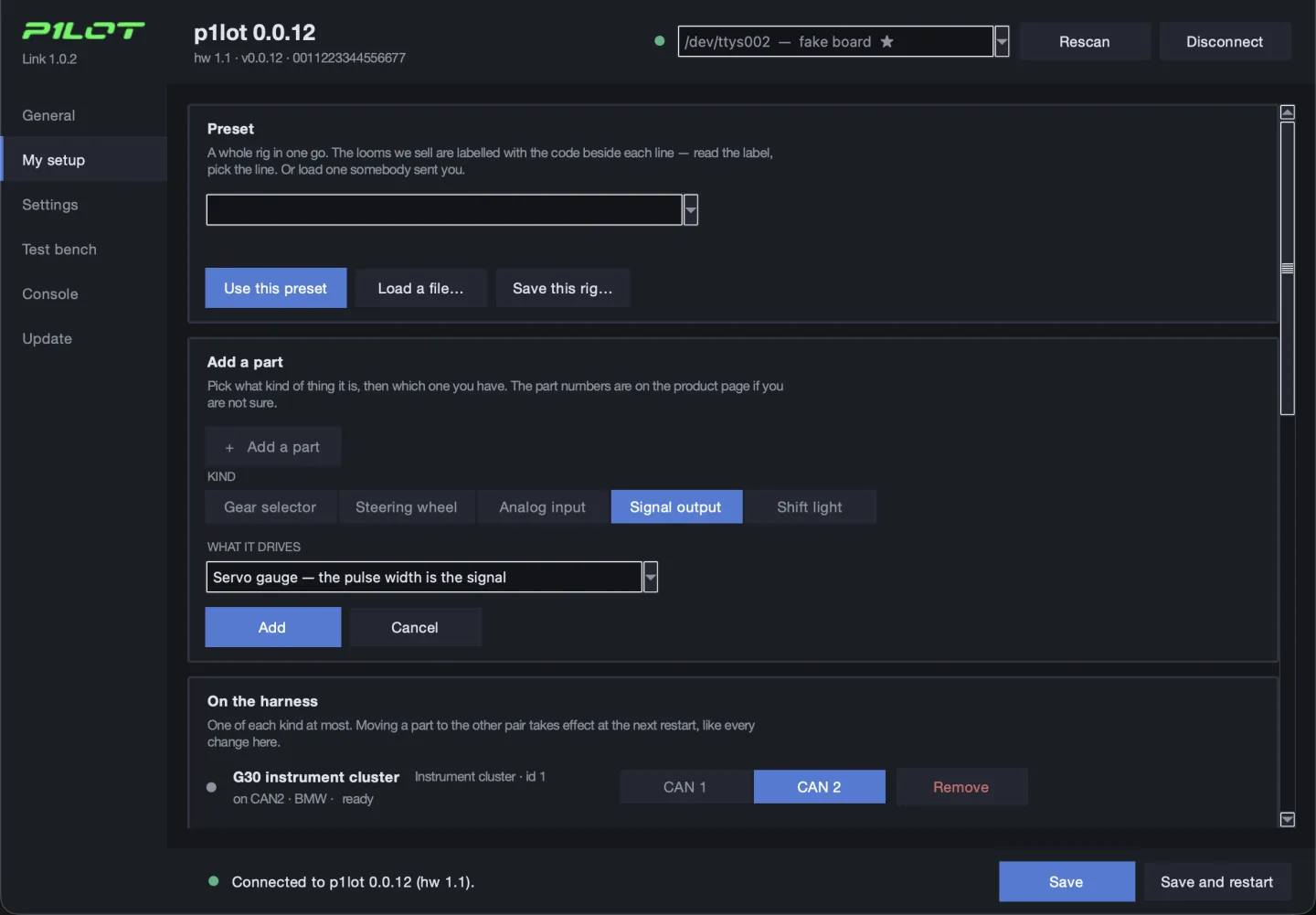
  • Presets. Every loom ships with a code on its label, such as P1-C2-S1-K1-W1-ASM. Select the matching line and each part is fitted to the correct pair, in order.
  • A new board shows an empty list. Parts appear as they are added.
  • The connector’s slots sit in the same list as the bus parts: two signal outputs, the LED strip and two analog inputs.
  • Settings belong to the part that owns them. Fitting the gear selector adds its three settings beneath it. Removing the lever takes them with it.
  • Each part lists the jobs it took: volume, track skip, play/pause, dashboard menus. The board assigns them from what is fitted.
  • Two parts that cannot share a wire are marked on both rows.
  • Save stores the setup. Save and restart applies the changes that take effect at start-up, such as moving a part to the other CAN pair.
  • Save this rig writes a preset file in the same format as the supplied presets, for sharing or for a second board.
The My setup page: a Preset box at the top with Use this preset, Load a file and Save this rig beside it, an Add a part card under that, and below those the parts on the harness. A G30 instrument cluster and a rotary controller, both on CAN2, each with the pair it sits on, what it is doing, and a Remove.
The rig in one line, then the parts on it. Each row carries its bus, the jobs it took and its current state.

My setup

Adding a part.

  • Add a part sits above the list, so its position does not move as parts are added.
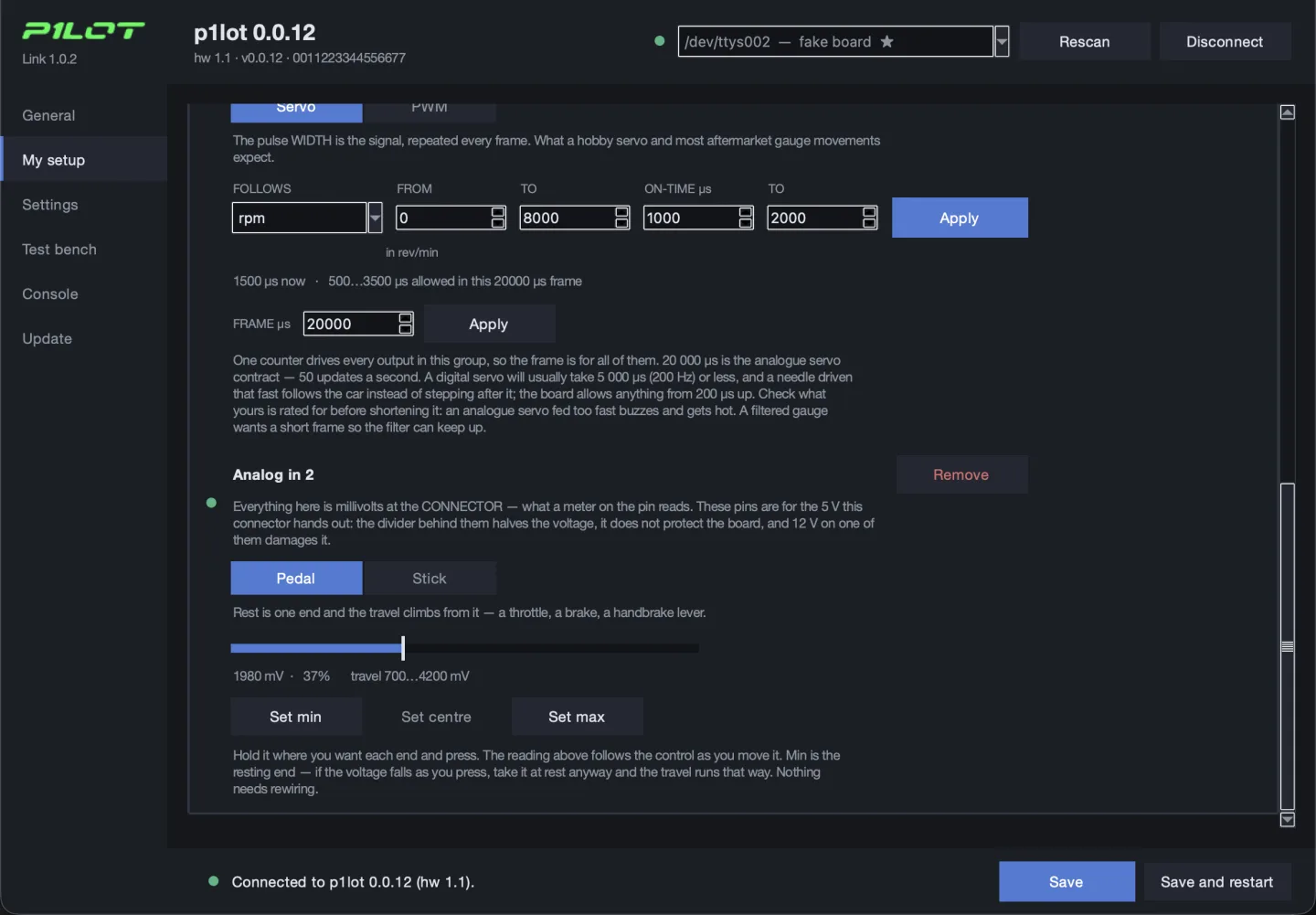
  • One list for every kind: dashboard, rotary controller, gear selector, steering wheel, analog input, signal output, LED strip.
  • The second field is what distinguishes that kind: which dashboard, a pedal or a stick, a servo gauge or a PWM gauge.
  • The kind sets the values that go with it. A servo takes a 20 ms frame and a 500 to 3500 µs pulse. A PWM gauge behind a filter takes a short frame and reads duty.
  • Remove sits on the part’s own row. What it removes returns to the list of available kinds.
The Add a part card open on the My setup page: a KIND row with Signal output chosen, and under it a WHAT IT DRIVES dropdown reading “Servo gauge — the pulse width is the signal”, with Add and Cancel below.
Two fields, then Add. A kind with nothing free left is not offered.

My setup

Analog inputs.

  • Each input is a pedal or a stick. A pedal rests at one end of its travel. A stick rests at the centre and returns the full axis, negative one way and positive the other.
  • To calibrate, hold the control at the end of its travel and press Set min or Set max. For a stick, release it and press Set centre. The reading above the buttons follows the control as it moves.
  • A reading that would leave no usable travel is refused, and the row says so.
  • A stick can take a deadband in millivolts. Each side is then scaled from the edge of the deadband, so both stops remain reachable.
  • An input that is not fitted reports its axis at rest rather than at an end.
  • These pins accept 0 to 5 V. The divider behind them halves the voltage. It does not protect the board, and 12 V on either pin will damage it.
Further down My setup: an analog input set up as a stick, with a live bar, the reading in millivolts, Set min, Set centre and Set max buttons and a deadband box — and under it a second input set up as a pedal, with the same three buttons and no deadband.
Readings are millivolts at the connector. That is the value a meter on the pin shows.

Settings

Board settings.

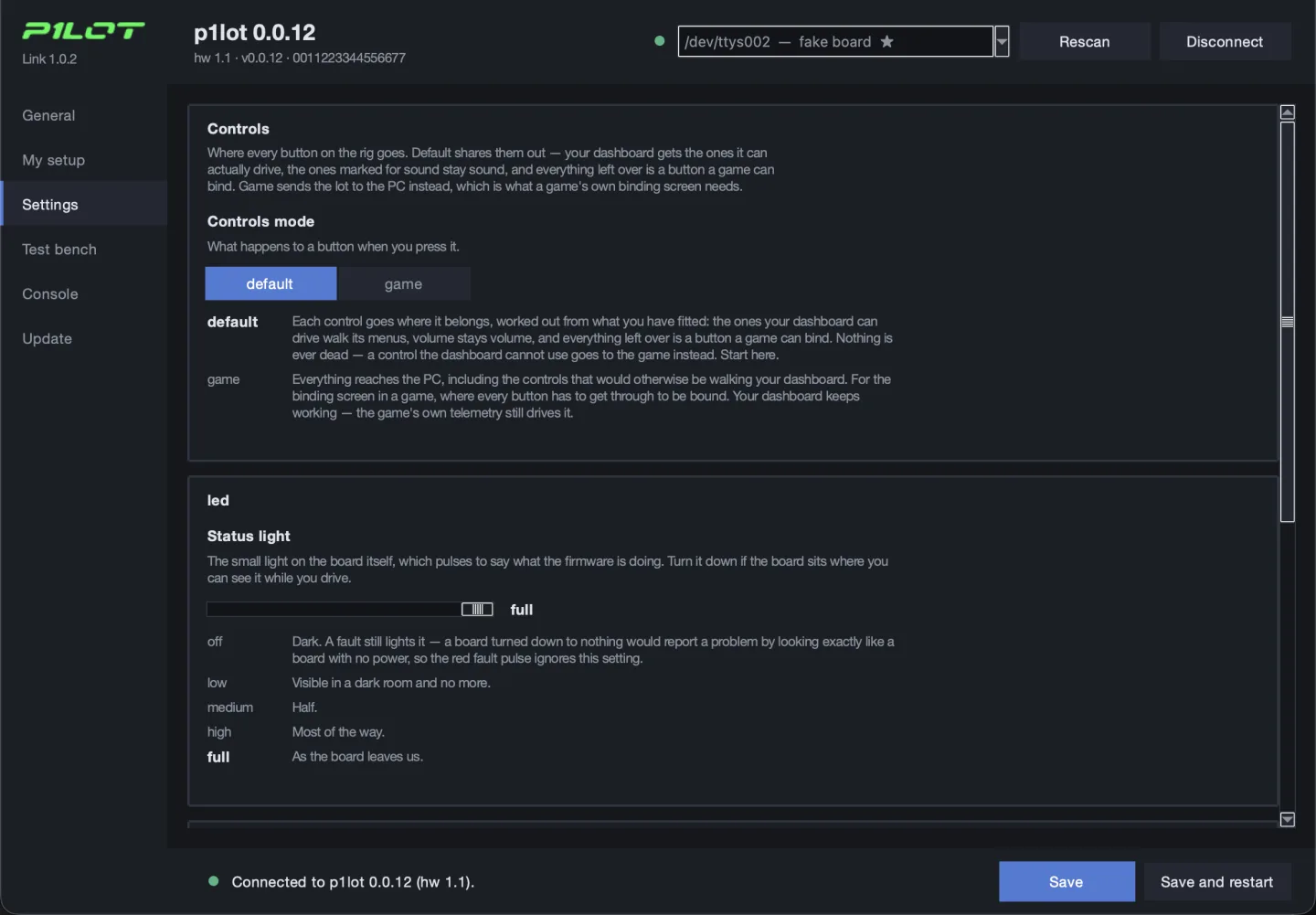
  • Which of the two control modes the board starts in. Both are described below.
  • Status light brightness, off through full. A fault ignores the setting and lights regardless.
  • How long the rig stays powered with nothing driving it.
  • Settings that describe a fitted part are not here. They appear under that part in My setup.
  • The list is not built into the app. The board sends its settings, their values and their descriptions, so firmware that adds a setting adds it here.
The Settings page: the controls mode with default and game, each explained in a paragraph, and below it a slider for the brightness of the board’s status light with its five steps listed.
Every setting on this page, its permitted values and its description come from the board.

Test bench

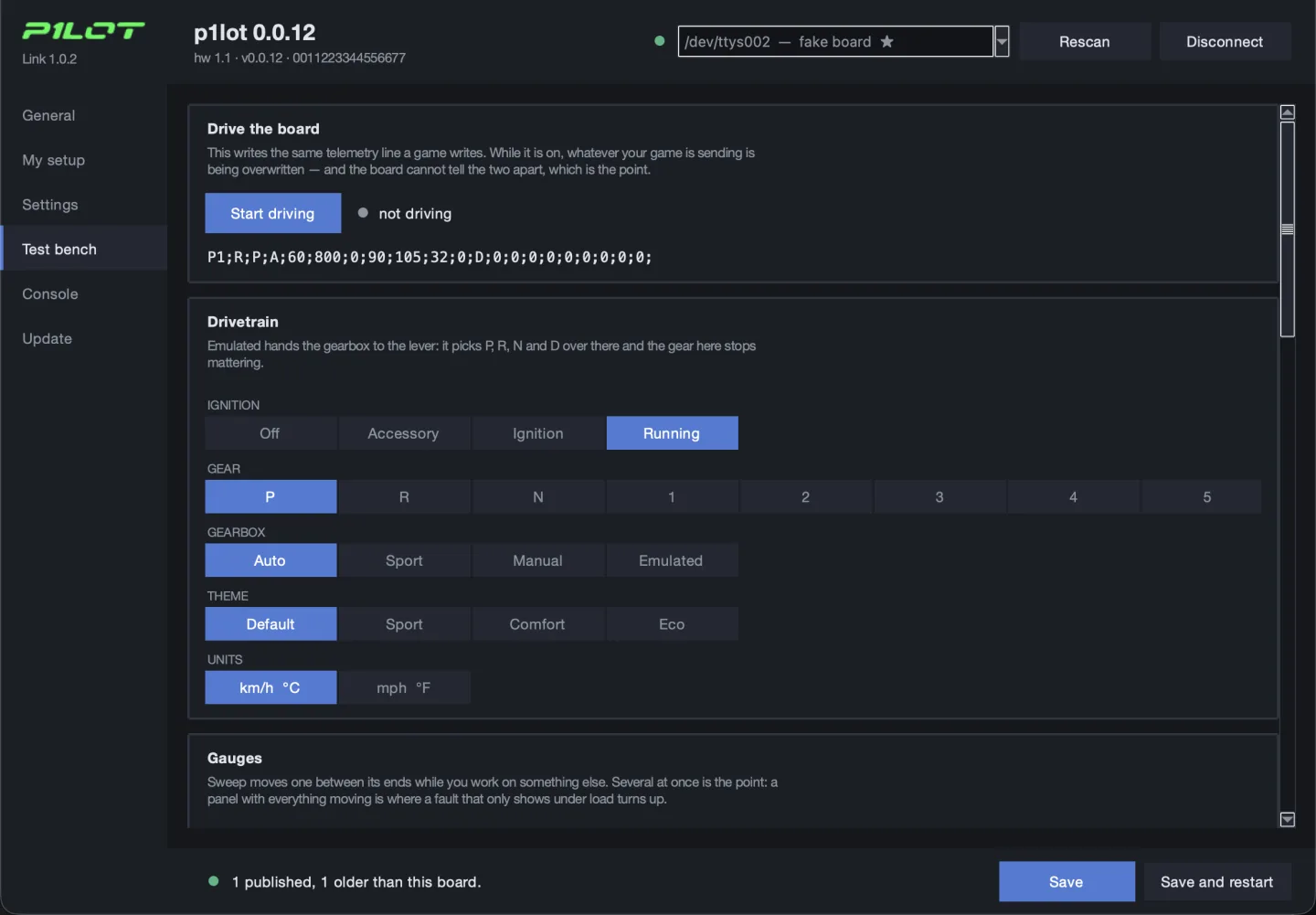
Driving the dashboard from the app.

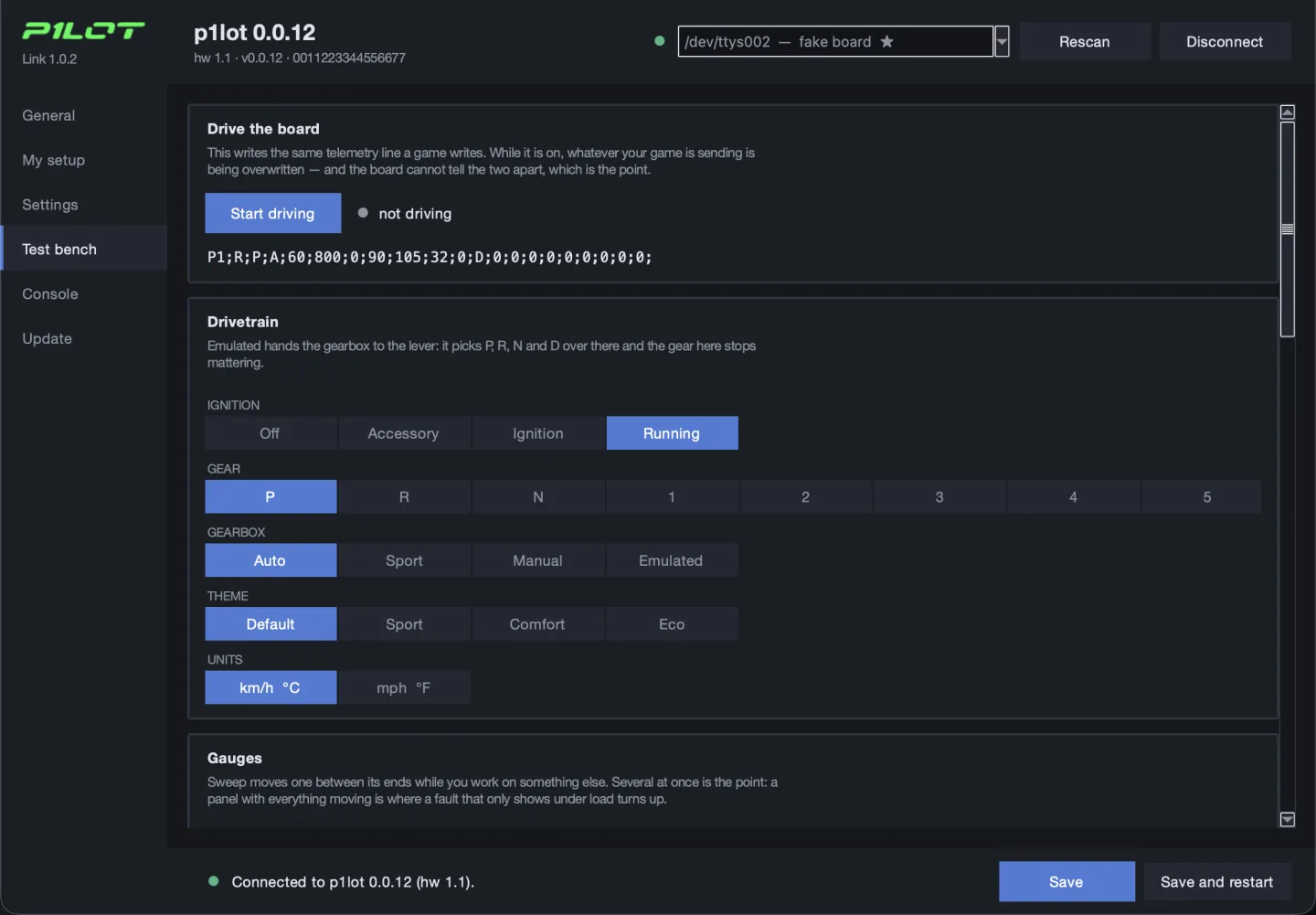
  • The app sends the same telemetry line SimHub does, so every needle, lamp and readout can be exercised on a bench.
  • Each gauge has a slider and a Sweep box that walks it end to end. Several can sweep at once.
  • Ignition, gear, gearbox mode, dashboard theme and units are set from buttons.
  • Emulated hands the gearbox to the lever. P, R, N and D are then selected there, and the gear set here no longer applies.
The Test bench page: a Start driving button with the telemetry line it is writing underneath, then ignition, gear, gearbox mode, theme and units as rows of buttons.
The board driven without a game running. The line below the button is the telemetry the app is writing.

Test bench

Lamps, lights and controls.

  • Every warning lamp a panel can light, individually or all at once.
  • Exterior lights and the dashboard’s menu buttons. A held button releases after three seconds.
  • Press a control on the rig and it is named here. That confirms it reaches the PC before it is bound in a game.
Further down the Test bench page: every warning lamp as a tick box with All on and All off, the exterior lights below them, the dashboard’s own buttons, and a panel showing what the board is sending the PC.
Warning lamps, exterior lights and the panel’s own buttons. At the foot of the page, what the board is sending the PC.

Console

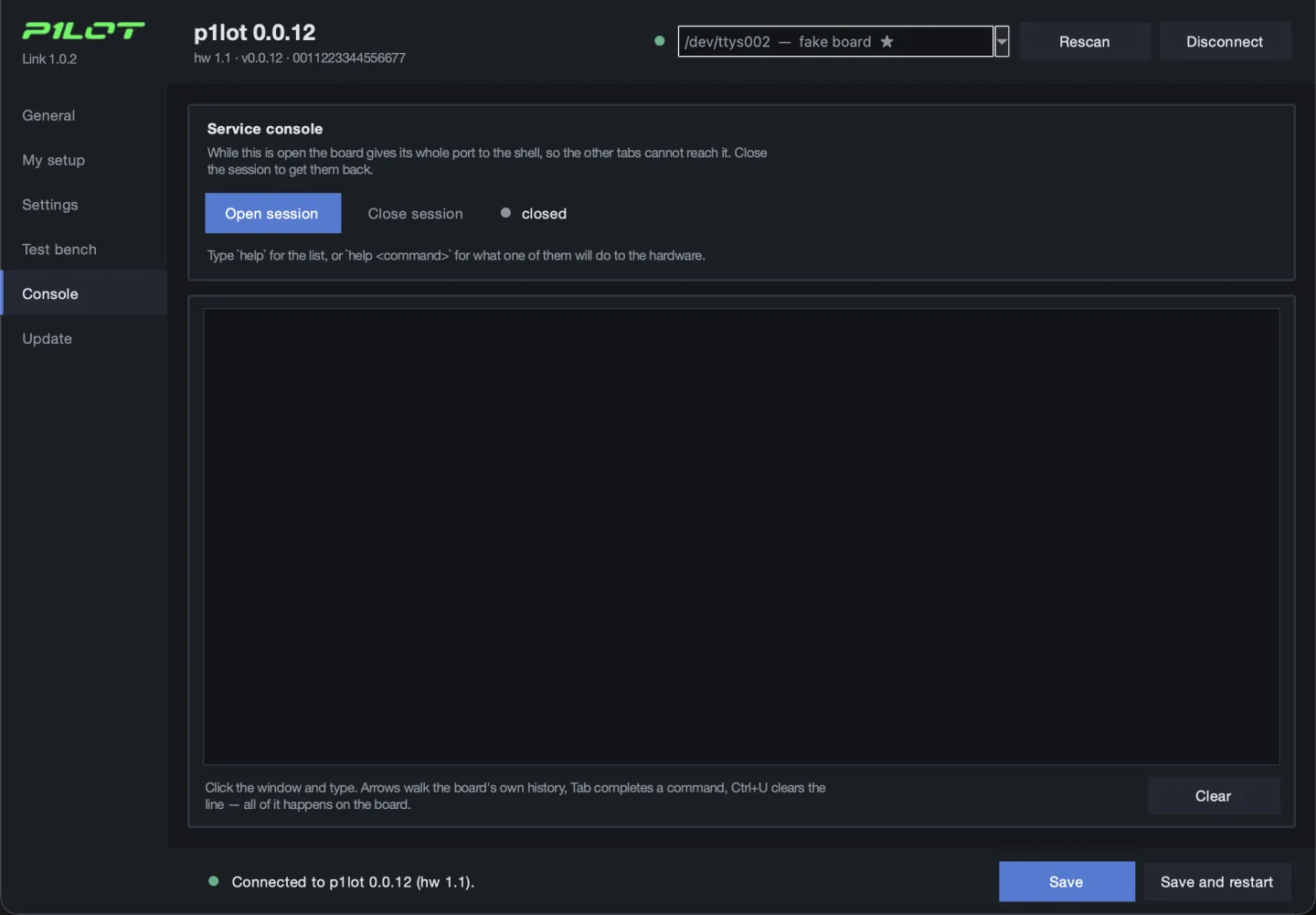
Direct access to the board.

  • A terminal onto the board. Everything the window does has a command behind it: what is fitted, the settings, the supply switches, the analog travel and the gauge outputs.
  • Arrow keys walk the board’s command history and Tab completes a command, both on the board.
  • While a session is open the board gives the port to the shell and the other pages pause. Closing the session restores them.
The Console page: an Open session button with the session showing as closed, a note that `help` lists the commands, and an empty terminal waiting underneath.
The board’s own shell, in a tab. `help` is answered by the firmware, so the list matches the board rather than the app.

Update

Firmware updates.

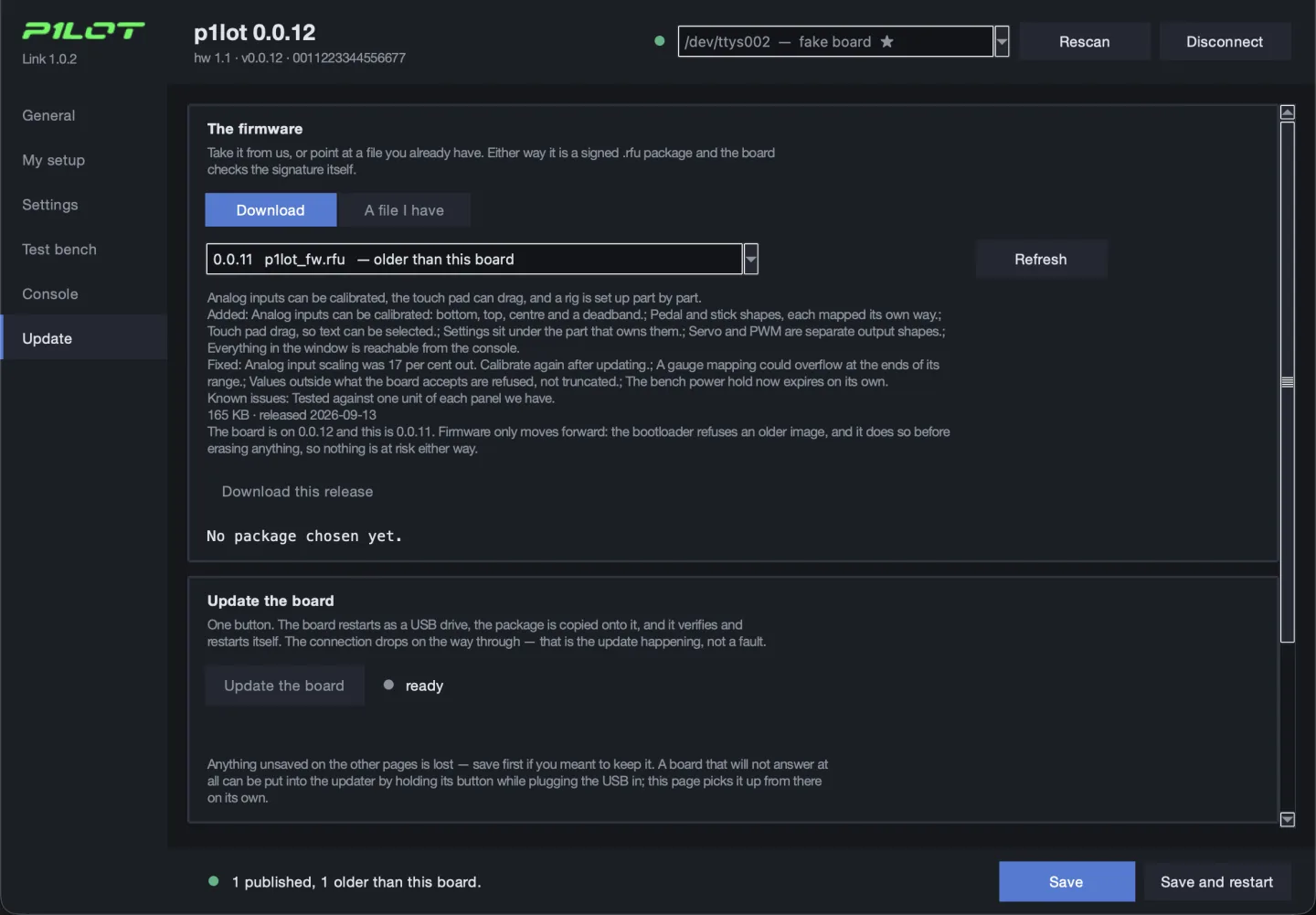
  • Published releases and their release notes are read from this site when the page opens. Select one, download it and press Update the board.
  • Each download is checked against the size and SHA-256 published beside it before the board is shown the file.
  • The board restarts as a USB drive, the package is copied across, and the board verifies its signature before replacing anything. The connection drops while this happens.
  • The running firmware is replaced only after the whole package has arrived and been verified, so an interrupted update leaves the previous version in place.
  • A file already on disk can be used instead, and the manual procedure is given on the same page.
The Update page: a list of published firmware with the notes for the chosen one, a button to download it, and below that the button that puts the board into its updater.
Published releases with their notes, read from this site. Below them, the same update performed by hand.

General

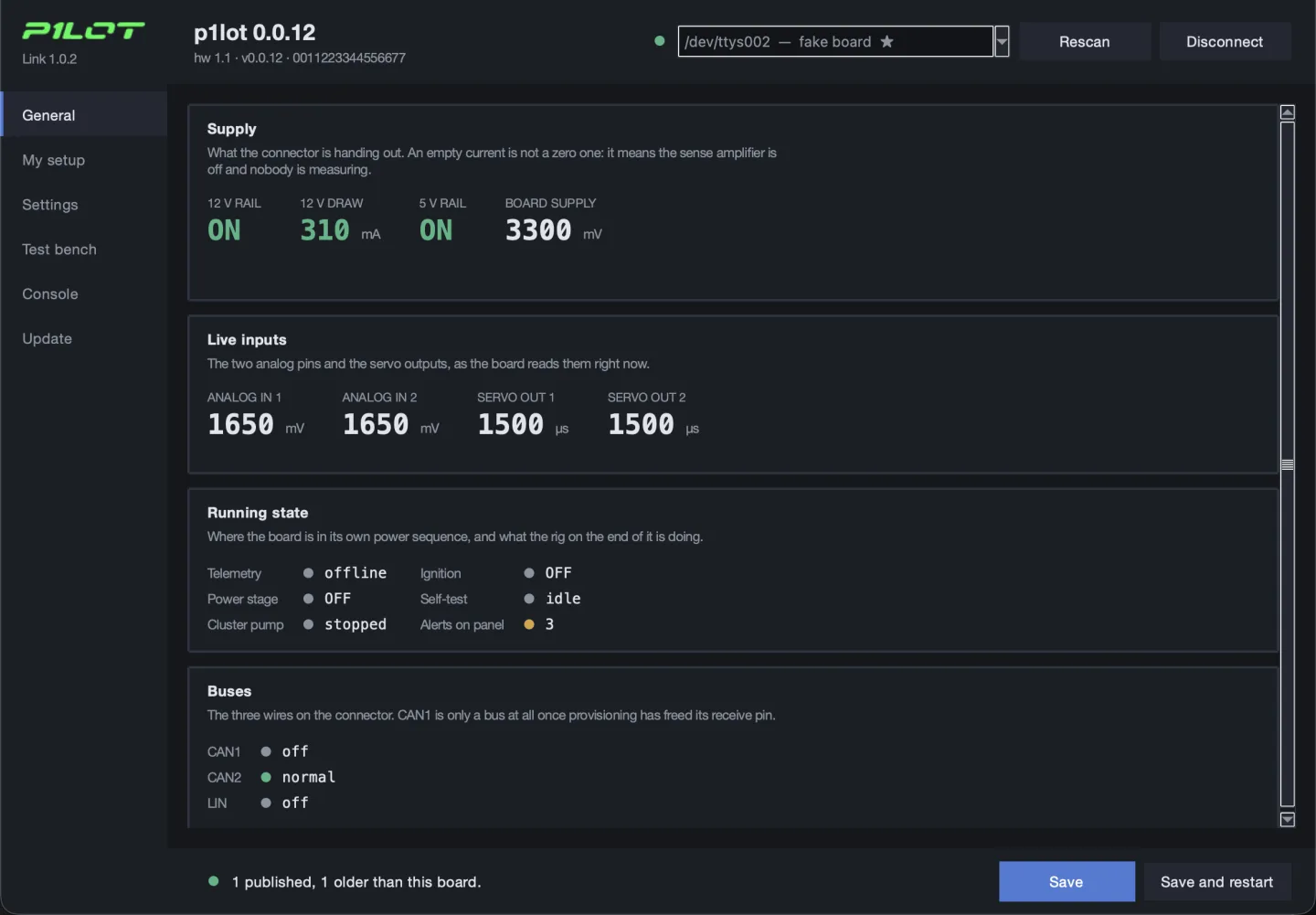
Live status.

  • The rails and the current the rig is drawing, in milliamps.
  • The two analog pins and the two gauge outputs as the board reads them.
  • The board’s position in its power sequence, whether a game is driving it, and whether the panel self-test is running.
  • Which of the three buses on the connector are active.
The General page: the 12 V rail and its current draw, the 5 V rail, board supply, the two analog inputs and servo outputs, the power sequence with telemetry, ignition and self-test, and the state of CAN1, CAN2 and LIN.
What the connector is supplying, live. An empty current reading means the sense amplifier is off, not that the draw is zero.

Settings

There are two modes, and one of them is the normal one

This is the only setting worth explaining before you own the thing, because it decides what every button on your rig does.

Default
Every control does the thing printed on it. Turn the rotary and the volume moves. Press it and the music plays. Rock it left and right to skip tracks. Fit a dashboard as well and it takes the buttons it needs for its own menus first, and whatever it does not need carries on being music. Everything left over after that reaches your game as an ordinary button. This is where a board starts and where it spends its life.
Game
Everything reaches your game, including the controls that were driving the dashboard. It is for a binding screen, where each button has to get through to the title before you can bind it. Press RADIO on the rotary to get here. Hold MEDIA for two seconds to go back. The dashboard is not deaf in this mode. The game’s own telemetry still drives it. Only your hand stops reaching it.
There is no separate media mode. The controls marked for sound work as sound at all times in Default, with no mode to enter first. On a rig with both a steering wheel and a rotary controller, volume, track and play answer from either.

Which control does which job follows from what is fitted, and nothing asks you to assign it. The board works it out, and My setup lists the result, one line per job. A dashboard that claims the arrow buttons for its own menus leaves the music elsewhere, and the page says where.

Download

A zip with one program in it

Firmware and SimHub

Unzip it anywhere and run it. There is no installer, nothing is written outside the folder you put it in, and deleting the folder is the uninstall. The licence notices for the open-source pieces it carries are in the zip beside the program.

Windows is the one that matters here, because that is the machine your sim is on and the machine SimHub runs on. It is first in the list for that reason, and its build is in progress. The macOS build is available now. Neither changes the result, because every setting is kept on the board rather than in the app.

Windows1.0.2
10.8 MBzip

Windows 10 and 11, 64-bit

DownloadUnzip it anywhere and open it. Nothing is installed and nothing is written outside the folder you put it in.

SHA-256ca10c75929d4be62c89b9b490d48eca350a0c2af2e5ca206fd256e03c52a33d4

macOS1.0.2
11.0 MBzip

Apple silicon, macOS 11 Big Sur and later

DownloadUnzip it anywhere and open it. Nothing is installed and nothing is written outside the folder you put it in.

SHA-256174d35a6749015c5ba960511f395ec09decd26ea73d3152b99292b664f9d7350

It is not signed yet
Which means your computer will say so. On macOS the first open has to be right-click → Open rather than a double-click. On Windows, SmartScreen shows More info → Run anyway. Code signing is on its way. Until then the digest above is what identifies the file. Compare it with what your machine reports.
What is inside it
The program, the presets for the looms we build, and THIRD-PARTY-NOTICES.txt. The window is Python’s own toolkit and the serial port is pySerial. Everything in there is attribution-only, and the build refuses to produce an archive if a component with other terms ever arrives.

Worth knowing

Three points before you connect

The rails stay up while the app is connected
With nothing driving it, the board drops its 12 V and 5 V. Connecting the app holds them up, so a part fitted during a session has power. Disconnecting returns the rails to the power sequence. The hold expires about thirty seconds after anything last spoke to the board, so a session that ends abruptly does not leave the rig powered.
One program per port
The app and a running game can share the board, so a rig can be configured while a game drives the dashboard. They cannot share the COM port. Windows grants it to one program at a time. Stop the device in SimHub before connecting. The app reports the refusal when this happens.
No driver, and nothing to install
The board enumerates as a standard serial device, supported by Windows since Windows 10. There is nothing to download and no driver warning to accept. If the board does not appear in the list, try a different USB cable. Many carry power only.